
By using this site, you agree to the Privacy Policy and Terms of Use.
Accept
Geekbitz.comGeekbitz.comGeekbitz.com
  • Tech
  • Printers
  • Gift Ideas
  • Lifestyle
    • Personal Development
  • Make Money
  • Pages
    • Contact
    • Privacy Policy
    • Terms of Use
Search
  • Contact
  • Blog
  • Privacy Policy
  • Terms of Use
© 2025 GeekBitz.com . All Rights Reserved.
Reading: Targus Docking Station Not Detecting Monitor: Causes & Fixes
Share
Sign In
Notification Show More
Font ResizerAa
Geekbitz.comGeekbitz.com
Font ResizerAa
  • Tech
  • Printers
  • Gift Ideas
  • Lifestyle
  • Make Money
Search
  • Home
  • Categories
    • Tech
    • Entertainment
    • Lifestyle
    • Shopping
  • Bookmarks
  • More GeekBitz
    • Sitemap
Have an existing account? Sign In
Follow US
  • Contact
  • Blog
  • Privacy Policy
  • Terms of Use
© 2025 GeekBtz.com | All Rights Reserved.
Geekbitz.com > Tech > Docking Stations > Targus Docking Station Not Detecting Monitor: Causes & Fixes
Docking Stations

Targus Docking Station Not Detecting Monitor: Causes & Fixes

Brian
Last updated: November 11, 2025 10:09 am
Brian
Share
SHARE

If you recently purchased a Targus Docking Station and are experiencing trouble with it detecting your monitor, we understand the frustration and confusion you may be feeling. But don’t worry, we’re here to help! This article will provide you with a detailed guide on the causes and solutions to the “Targus Docking Station Not Detecting Monitor” issue.
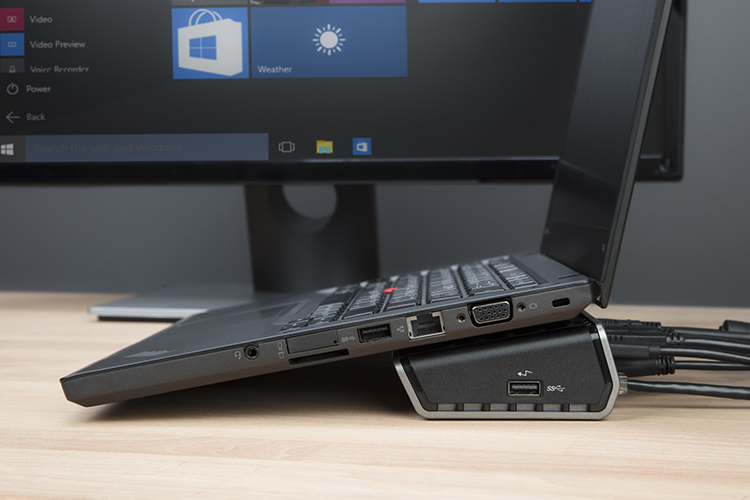
So please sit back, relax, read along and ensure you don’t miss any part as we provide a detailed guide.

If you’re having trouble with your Targus Docking Station not detecting your monitor, there are several possible reasons why.

The most common cause is a hardware issue, but it could also be a software issue. Here are some of the reasons why your Docking Station may not be detecting your monitor:

  • Faulty cable or ports
  • Incompatible settings configuration
  • Incompatible system requirements
  • Outdated drivers and graphics card
  • Other hardware malfunctions

Thankfully, there are several DIY fixes you can try to solve the problem. The following strategies should help you fix the issue:

  1. Check Hardware Components: Check if all hardware devices are plugged in correctly. Make sure all cables and connections are secure and that you have selected the correct I/O connection method. Additionally, check if your monitor is working efficiently by connecting it to another laptop.
  1. Restart Your Devices: Restart your devices, including your computer and docking station. This will create a new user session that can fix the problem and detect your monitor.
  1. Check System Requirements: Check if your docking station matches your system specs. If it doesn’t, you’ll need to replace it.
  1. Check The Display Settings: Adjust the display settings on your PC to fix an incomplete configuration.
  1. Update Docking Station Drivers: Install the latest driver for your Targus Docking Station to ensure it works correctly.
  1. Update Your Graphics Drivers: Update your computer’s graphics driver to ensure it effectively communicates with your docking station.
  1. Install Pending Windows Updates: Update your system’s operating system to ensure system compatibility fixes and incorporate security patches.

If none of these DIY fixes work, you can try restarting your graphics driver. Press the Windows key + Ctrl+Shift+B to restart your graphics driver, which should resolve any glitches causing the problem.

If none of the above problems can solve your docking station problem, please consider contacting your manufacturer’s support for further instructions on how to fix the problem. 


Other Relaed Guides on Docking Stations:

  • j5create docking station not detecting monitor
  • Best docking stations for hp pavilion laptops
  • Hp docking station not detecting monitor
  • Dell docking station not detecting the monitor
  • Ascrono vertical docking station hub review
  • Plugable USB 3.0 Docking Station not Detecting Monitor

You Might Also Like

Plugable USB 3.0 Docking Station not Detecting Monitor: How To Fix

Ascrono Vertical Docking Station Hub Review: The Ultimate Docking Station for MacBook Users

5 Best Docking Stations for HP Pavilion Laptops in 2025

Dell Docking Station Not Detecting Monitor: Causes & Fixes

HP Docking Station Not Detecting Monitor: Causes & Fixes

Latest Tech News

Can You Use Eero with Xfinity
Can You Use Eero with Xfinity? Here’s the Complete Guide
Wifi
How to Connect Your Hiboy S2 Scooter to the Mobile App
Scooters
Breaking the Limit: How Many Devices Can You Connect to a Starlink Router?
Wifi
Does Eero Work with Starlink
Does Eero Work with Starlink? The Ultimate Guide
Wifi
Share This Article
Facebook Twitter Copy Link Print
Share
By Brian
Hello, I’m Brian. I’m a creator, designer, and the owner of the GeekBitz blog. I have a Computer Science background and taught myself digital marketing to fund my artistic pursuits. Now am addicted to developing products and building partnerships.
Previous Article Best Wireless Keyboards with Caps Lock Indicator Light: Our Top 5 Picks
Next Article 5 Best Docking Stations for HP Pavilion Laptops in 2025

Latest News

Can You Use Eero with Xfinity
Can You Use Eero with Xfinity? Here’s the Complete Guide
Wifi
Roland BN20D DTF Printer Review: Is It Worth Your Investment?
Why Does My Glowforge Keep Saying “Centering”
Why Does My Glowforge Keep Saying Centering? A Troubleshooting Guide
Laser engravers
How to Connect Your Hiboy S2 Scooter to the Mobile App
Scooters

You Might also Like

J5create Docking Station Not Detecting Monitor: How to Fix

6 Min Read
// GeekBitz
Geekbitz.comGeekbitz.com
Follow US
© 2025 GeekBitz. All Rights Reserved.
  • Tech
  • Printers
  • Gift Ideas
  • Lifestyle
  • Make Money
  • Pages
Welcome Back!

Sign in to your account
